
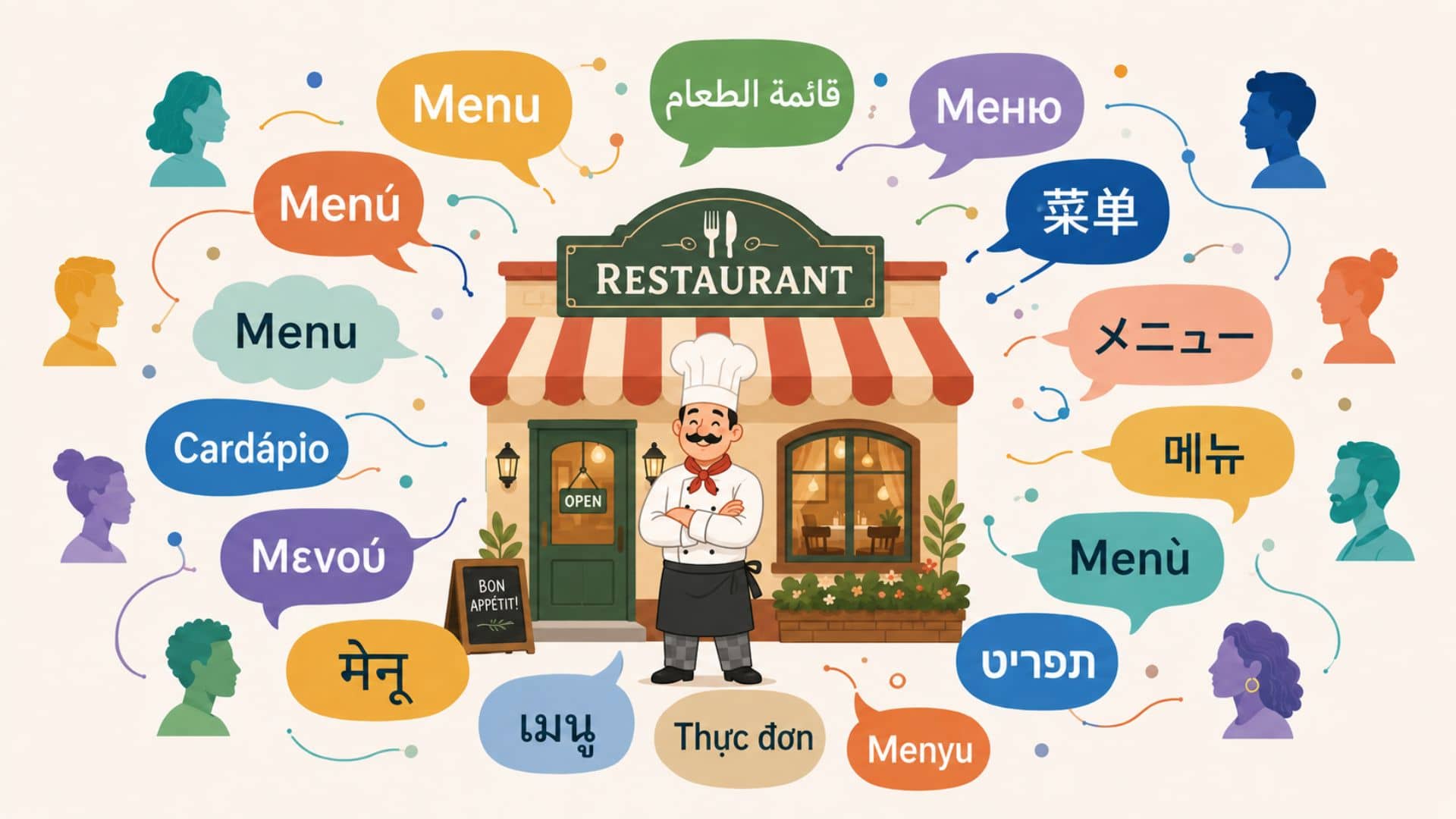
You can use BuonMenu.com to create a multilingual online menu for your restaurant. The multilingual menu can be read by your customers on a smartphone, tablet or computer, both in your restaurant or from any other place. Let's see how to create a multilingual menu.
There are three methods for creating a multilingual menu: built-in AI translations (recommended), automatic browser translations or manual translations. Let's see them all.
Built-in AI translations (recommended)
This is the recommended method. BuonMenu now includes a built-in translation feature that uses AI to automatically translate your menu into the languages you choose.
Compared to browser translations, the AI translations have several advantages:
- the translations are integrated directly into your menu and don't depend on the user's browser
- all your customers see them, no matter which device or browser they use
- the menu shows a language switcher at the top, so customers can pick their preferred language with a single tap
- the translations are produced by an AI model specifically instructed to translate restaurant menus, so the results are accurate and natural-sounding
- the translated content covers everything in your menu: restaurant info, menus, categories, items, allergens, etc.
- translations are generated automatically in the background as soon as you create or update any content, and they are kept in sync when you edit something
How to enable AI translations for your menu
The setup takes less than a minute. Here are the steps:
- log in to BuonMenu in order to manage your restaurant
- click Profile and set the Language field to the main language used in your menu (this is the language you write in — for example, English). Save the profile.
- go back to your restaurant and click Translations
- click Add language and pick the language you want your menu to be translated into (for example, Italian)
- repeat the previous step for any additional language you want to support (you can add up to 3 translation languages)
That's it. The translations are generated automatically in the background. After a short while, your menu will be available in all the selected languages and customers will see a language switcher at the top of the page.
How translations stay up to date
You don't need to do anything to keep the translations updated. Every time you create or update an item, a category, a menu or any other piece of content, the translations are regenerated automatically for all the languages you have added.
If you remove a translation language, the corresponding translations are deleted as well.
Monthly translation limit
Each restaurant has a generous monthly limit for AI translations, which is more than enough for normal usage. If you reach the limit, you will see a notice on your restaurant dashboard and new content won't be translated until the limit resets at the beginning of the next month. The existing translations remain available and visible to your customers.
Automatic browser translations
This is absolutely a powerful feature and a recommended method. Basically when you create your menu using BuonMenu, you get an online menu that is a web page.
This means that your menu can use the translation capabilities offered by web browsers (like Chrome, Edge, Safari, etc.).
Let's say that you usually read and write in Italian and your menu is written in Italian. If you open your menu with your device you don't notice any translation.
However when a user that speaks German opens your menu, he will immediately see a prompt asking if he wants to see your restaurant menu in their language. Basically an automatic translation from Italian to German is generated automatically by the browser and the user will see the menu in their preferred language.
This is true for any language!
Basically you can simply write your restaurant menu in your preferred language and then all the translations - to any other language - happen automatically.
How to enable browser translations for your menu
Translations are enabled automatically.
However the browser must detect the language of the menu in order to translate it properly, so the following steps are recommended.
Perform the following steps:
- login to BuonMenu in order to manage your restaurant
- click Profile
- find the option called Language and select the main language used for your menu.
That's it. Translations will happen automatically.
How to test browser translations
Now that you have enabled the browser translations you may want to see them - I mean, for curiosity.
Remember that the translations are presented automatically only to the users that have a preferred language different from the language of the menu.
For example:
- if your menu is in Italian and the preferred language on your device is Italian, you won't see any automatic translation
- if your menu is in Italian and the preferred language is German, for example, then you will see a prompt that asks if you want to translate the page
Here's what you should do:
- open Chrome
- go to Preferences to open the browser settings
- go to the Languages section
- click Add languages
- add a language (e.g. if your menu is in Italian, add German)
- remove all the other languages (e.g. Italian)
- open your menu (e.g. buonmenu.com/example)
- you will see a prompt asking if you want to translate the page (e.g. from Italian to German)
You can also find more detailed instructions and alternative methods on the Chrome documentation.
Obviously real users don't need to do all this... They simply see the translation. These steps are just a simulation for the restaurant owner to pretend to speak a different language.
What browsers support automatic translations
Automatic translations are supported by all major browser, including:
- Google Chrome, on any OS, including Android and iOS (which represents about 70% of the market share)
- Safari on iOS (starting from iOS 14, which will be available to public on September 2020)
- Microsoft Edge and other browsers
Some browser, like Firefox, don't support automatic translations by default, however there are some plugins for those browsers that add translation capabilities.
What languages are supported by the browser
Basically all languages are supported.
For example these are the languages supported by Chrome for the automatic translations.
Manual translations
If you prefer to translate your menu manually, you can do that as well, using BuonMenu.
Indeed each restaurant on BuonMenu can create an unlimited number of menus, so you can simply create a different menu for each language.
For example:
- Menu - Italiano
- Menu - English
- etc.
You can also add some flags if you prefer using Unicode symbols / emoji...
- Menu 🇮🇹
- Menu 🇬🇧
- etc.